The school’s IT department has already put Xcode on your laptop. Xcode is the app we use all year to write, run and test games.
Today you check that it opens.
Open Xcode
-
Open Finder, then choose Applications in the sidebar.
-
Find Xcode. Its icon is a blue square with a hammer.
-
Double-click Xcode to open it.
The first time Xcode opens, it can take a minute or two. Be patient.
If Xcode asks for your password to finish installing, type the password you use to log in to your laptop.
If Xcode asks to download something
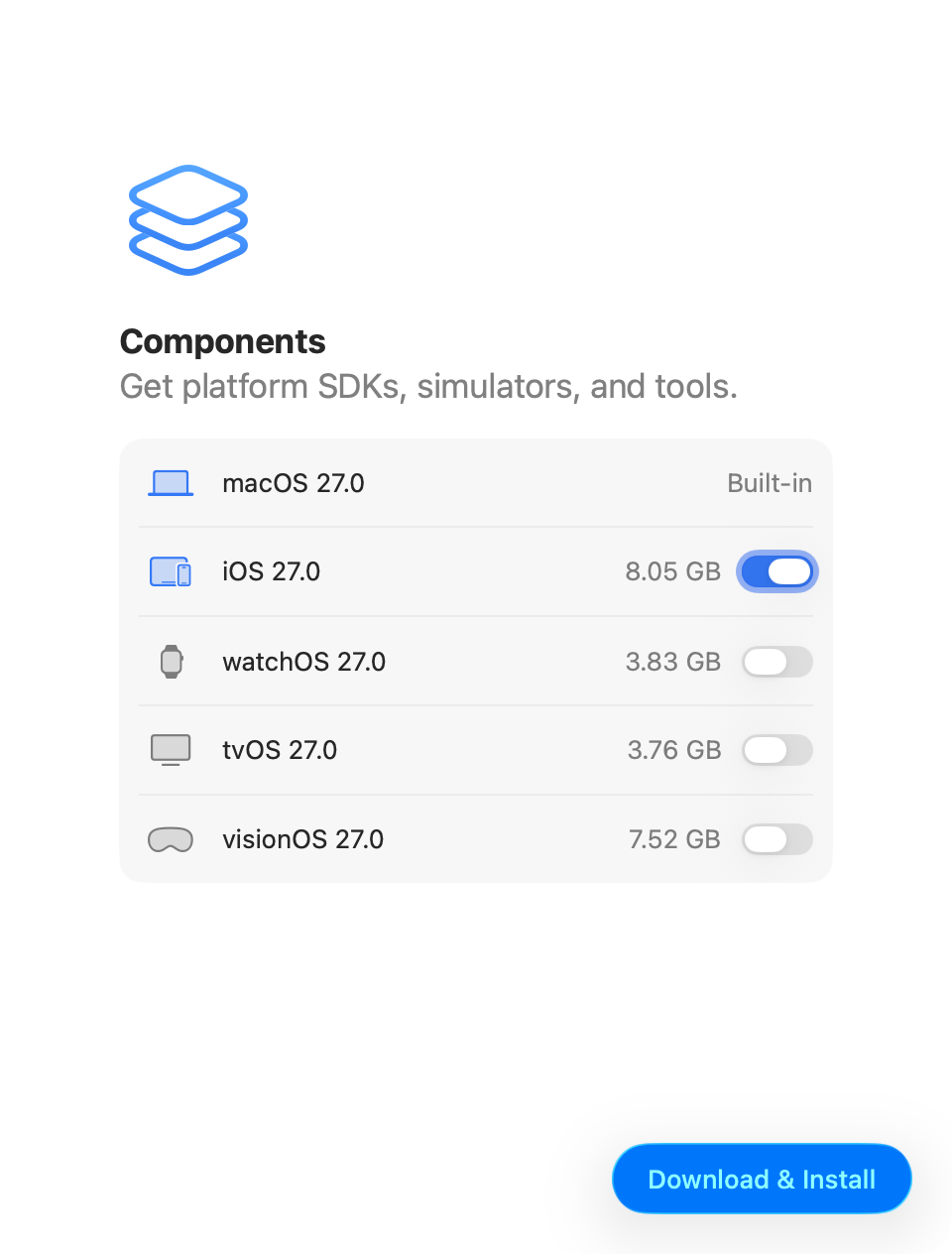
The first time it opens, Xcode may show a list of platforms, such as iOS, with a Download & Install button, like this:
Put your hand up and show me before you click anything. The download is very large, and many laptops downloading it at the same time will slow the school network to a crawl. I will tell you what to do.
NOTE
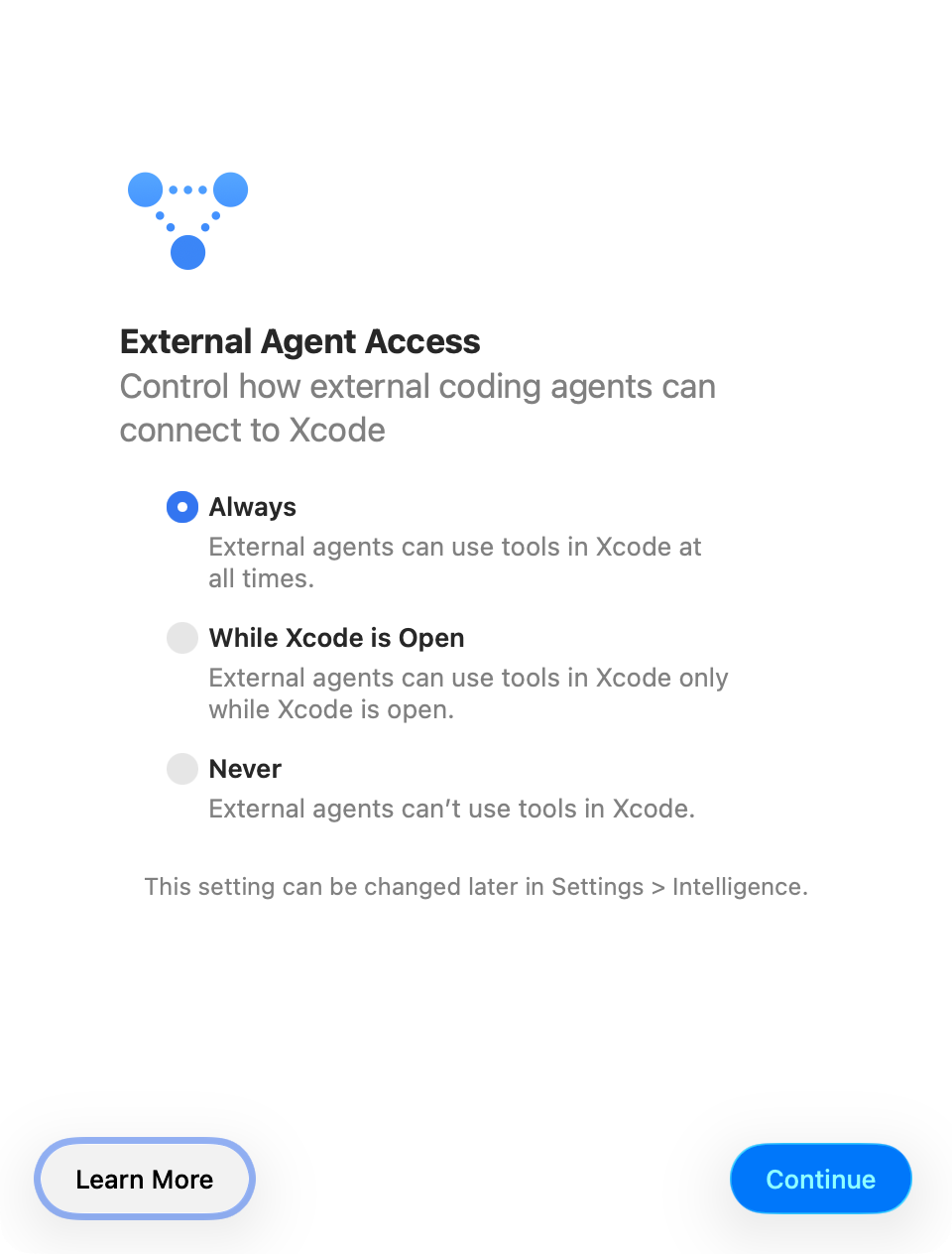
The first time you run Xcode, you may see this message as well:
Leave the default option of Always selected. We’ll talk more, later in the current module of the course, about how to effectively use large language model AI agents with Xcode. Leaving the Always option selected will reduce the number of permissions prompts you need to respond to later on.
If Xcode opens successfully, you will see a message something like this:
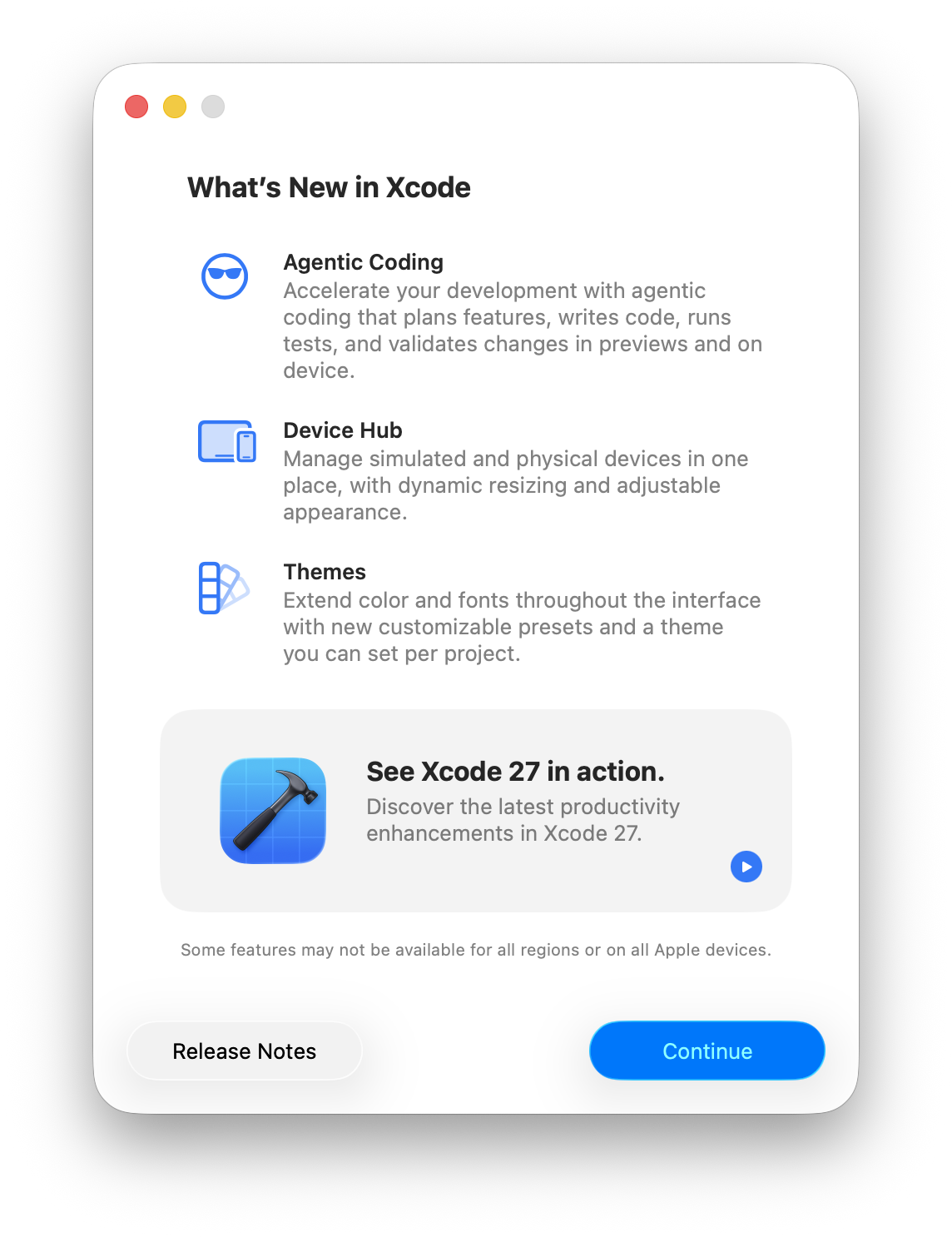
Press the Continue button.
If Xcode is missing or will not open
Tell me right away. I have a copy of Xcode on a USB key and will put it on your laptop for you. You may need to type your laptop password.
If Xcode says your Mac needs a newer version of macOS, do not update on your own. Tell me.
Test of success
- Xcode opens to the Welcome to Xcode window without asking for anything more.
Next: Download Your First Game.