Look at the Guessing Game. The magnifying glass in the title, the question mark on the card, the hand on the Guess button: none of those is a picture file. Each is an SF Symbol, drawn by designers at Apple and built into every Mac and iPhone. This tutorial will show you where to find them – then you can try using SF Symbols in an app.
Open your game
If the Guessing Game is not open in Xcode yet, open it now. It takes three clicks.
-
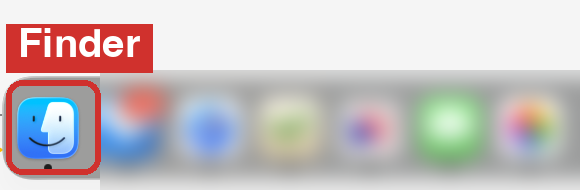
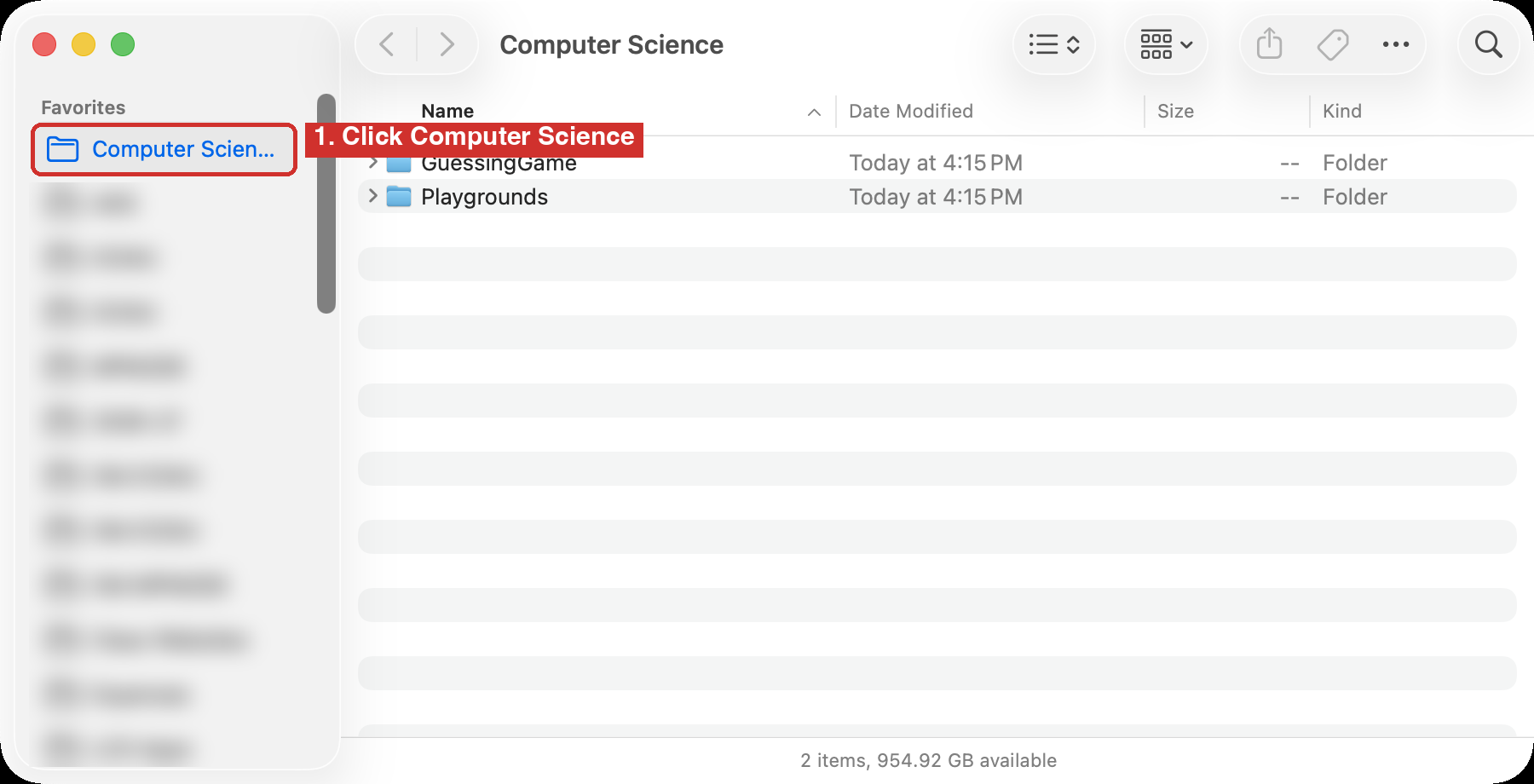
In the Finder, click Computer Science under Favourites in the sidebar. The Finder is the smiling blue face at the left end of the Dock, the row of icons along the bottom of the screen.
-
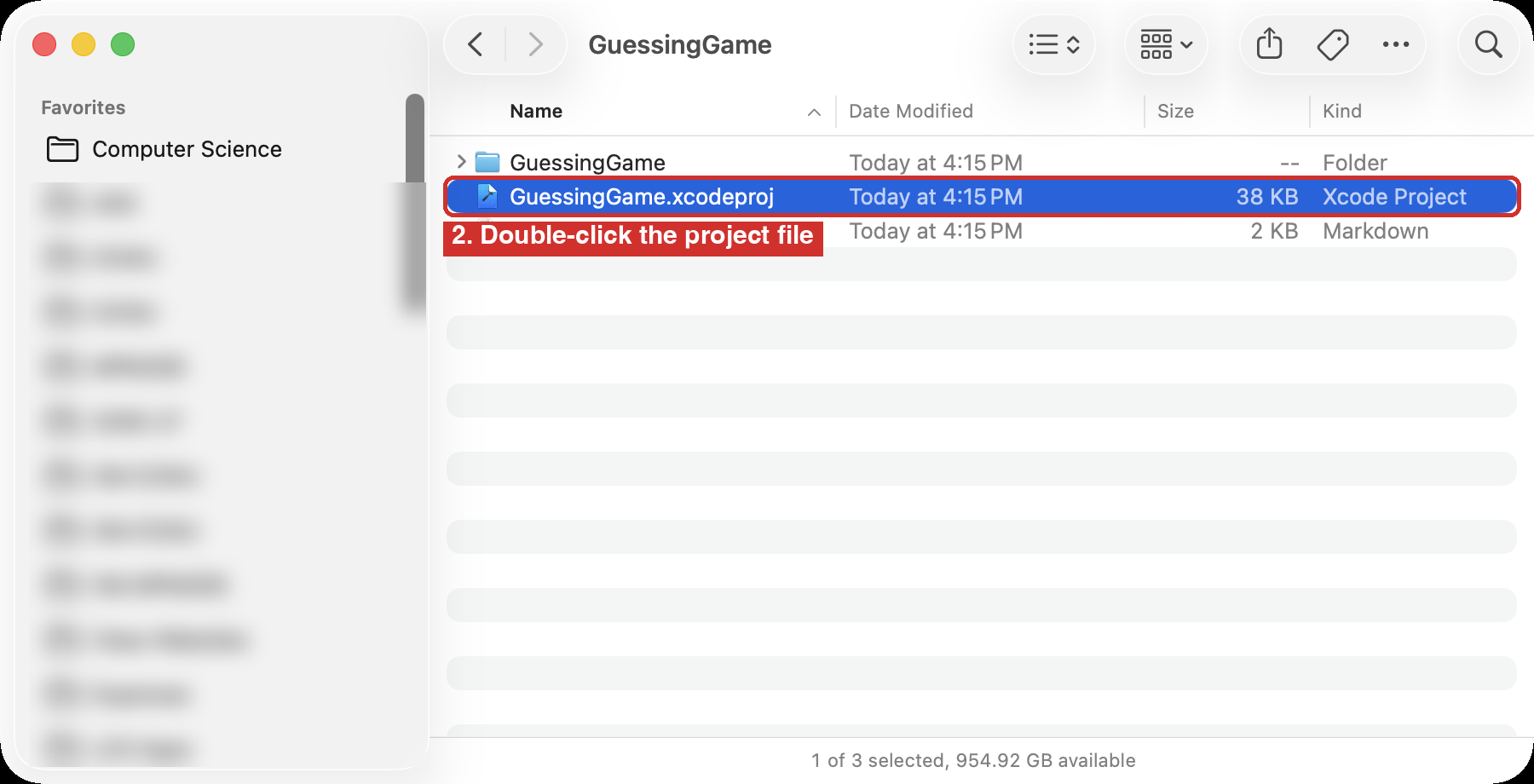
Open the GuessingGame folder, then double-click GuessingGame.xcodeproj, the file with the blue Xcode icon. Not the folder with the same name.
-
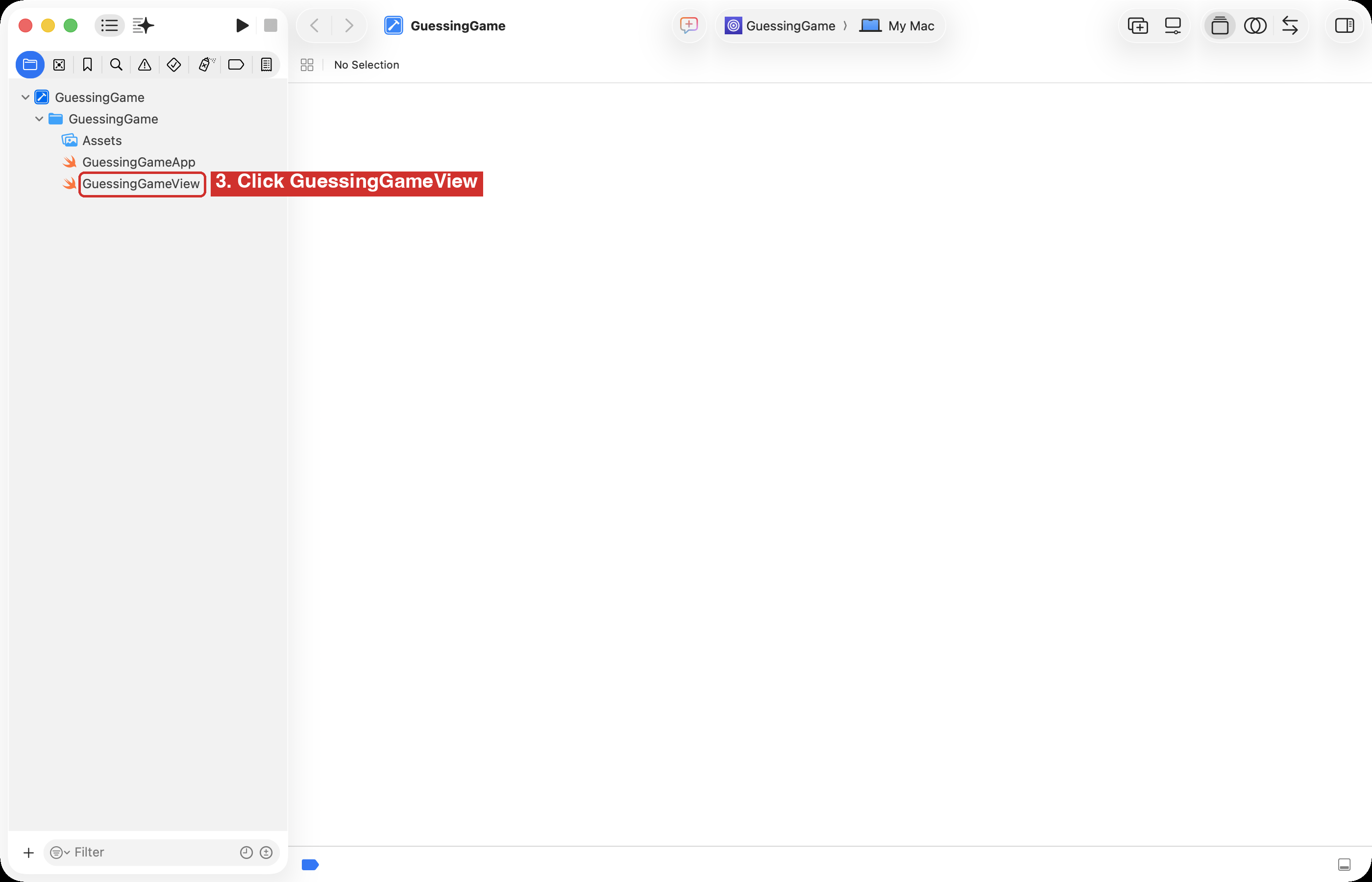
Xcode opens with the project. In the list on the left, click GuessingGameView. That file holds the game’s screen, and every step on this page happens in it.
No Computer Science folder in the sidebar?
That means the folder was never made a favourite on your computer.
To fix that, in the Finder, choose Go > Home, locate the Computer Science folder, and then drag it into the sidebar under Favourites. How to do this was described in further detail in Download Your First Game, from the first day of class.
Marking a folder as a favourite means it will always be just one click away.
What SF Symbols are
Apple’s font is called San Francisco. It is the lettering on every Apple screen. SF Symbols is a set of more than 7,000 icons drawn to match that font. A symbol sits on the same line as the text beside it, grows and shrinks with the text, takes the same boldness, and takes whatever colour you give it.
Before SF Symbols existed, every app shipped its own icon pictures, drawn by different people, in several sizes. As a result, icons often looked a little different in every app.
With SF Symbols, symbols are now part of the system – macOS or iOS – so there is nothing to download, nothing to resize, and the symbols look “right” everywhere.
Each one has a name, written in lower case with dots, such as star.circle.fill. In code, you use a symbol by providing its name.
The symbols already in your game
Open GuessingGameView.swift, press Command-F, and search for Image. There are four matches. Each one shows a symbol:
| Where | The code | The symbol |
|---|---|---|
| The title | Image(systemName: "sparkle.magnifyingglass") | a magnifying glass with a sparkle |
| The message card | Image(systemName: messageSymbol) | whatever name messageSymbol holds |
| The Play Again button | Button("Play Again", systemImage: "arrow.clockwise") | a circling arrow |
| The Guess button | Button("Guess", systemImage: "hand.point.up.left.fill") | a pointing hand |
The message card is the interesting one. Its symbol is not fixed: messageSymbol is a variable, and the game stores a different name in it as you play. Search for messageSymbol and you will find the three names: questionmark.circle.fill to start, star.circle.fill when you win, and xmark.circle.fill when you are wrong. Change the name, and the picture changes.
The SF Symbols app
How do you find a symbol’s name? With the SF Symbols app, which should already be on your laptop, courtesy of the Information Systems team here at LCS.
Press Command-Space, type SF Symbols, and press Return to open the app:
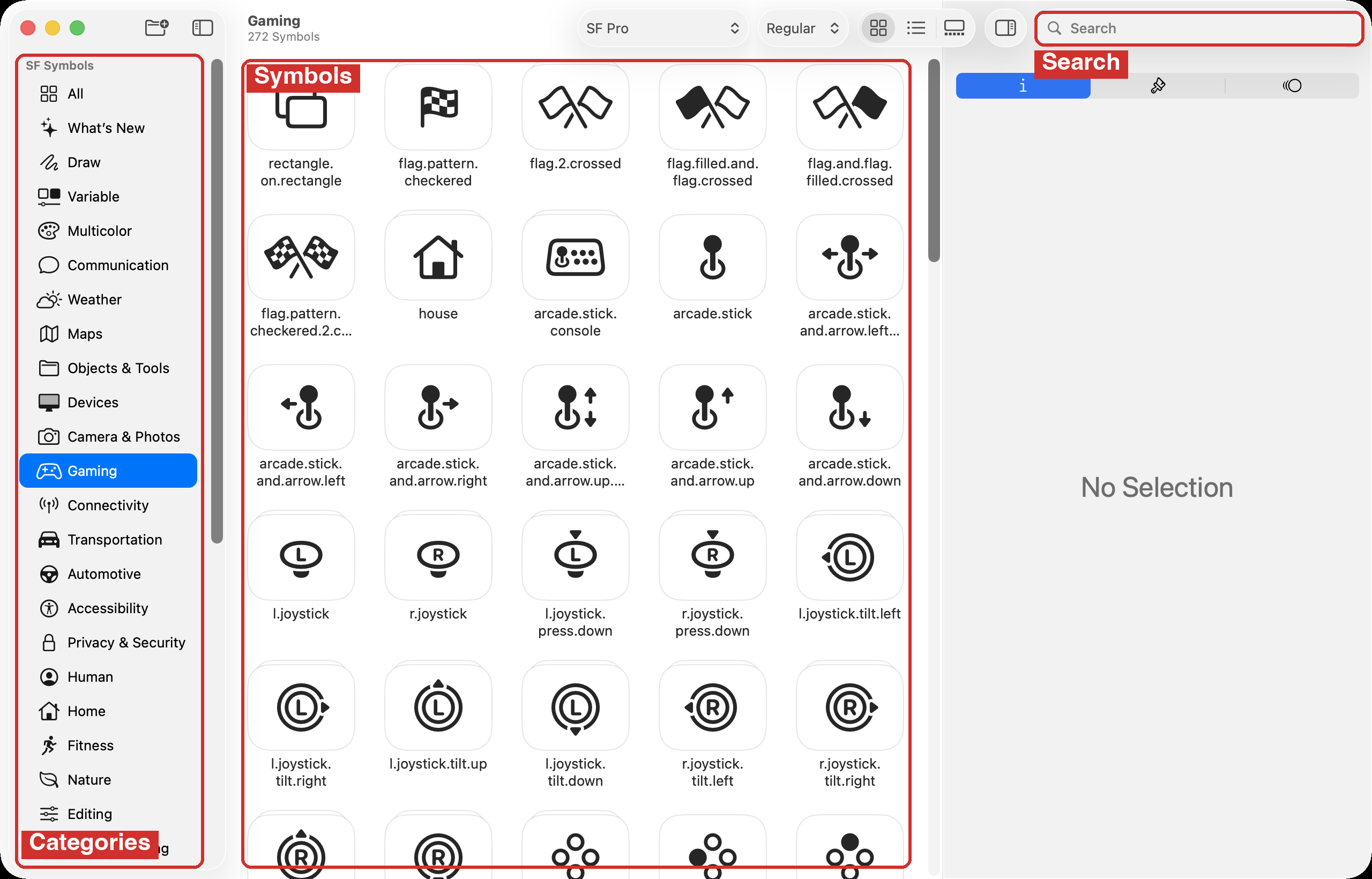
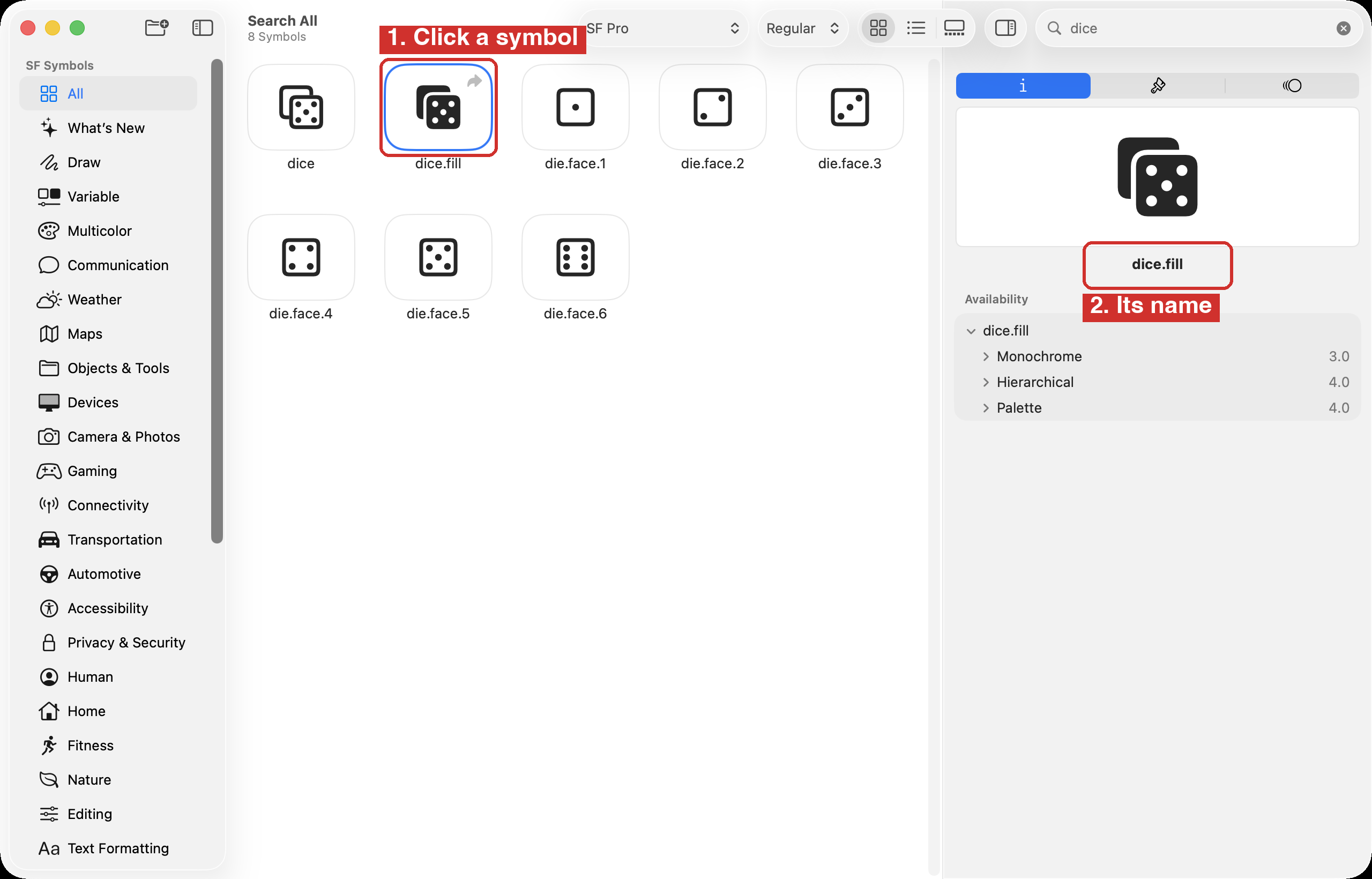
The categories down the left side are a good way to browse. The search field at the top right is faster when you know roughly what you want. Try searching for dice.
Click a symbol, and its name appears on the right.
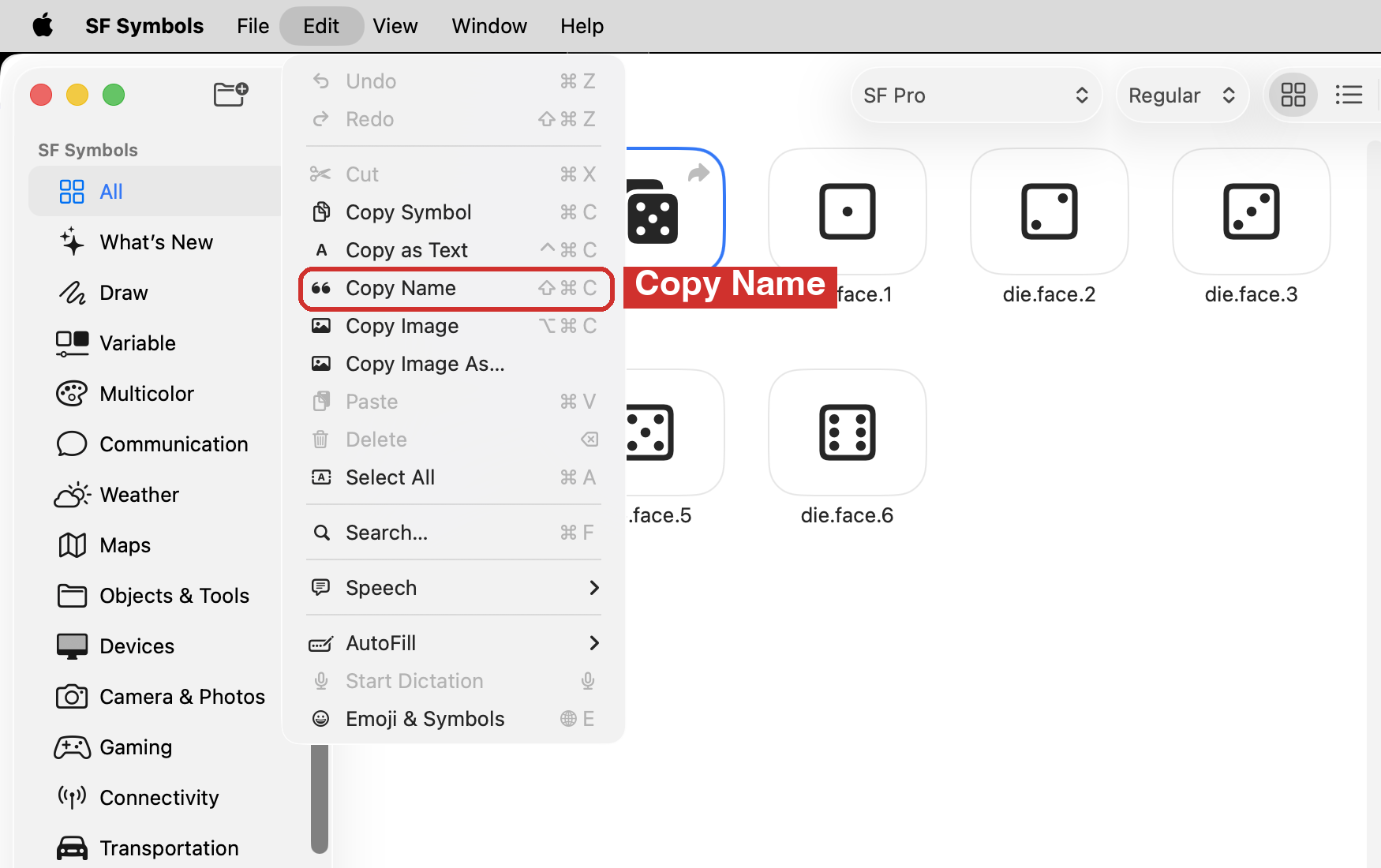
Do not type the name into your code. Instead, copy it, so it is spelled exactly right: choose Edit > Copy Name, or press Shift-Command-C. Then paste it into your code between the quotation marks.
A wrong name gives no error
If you misspell a symbol’s name, Xcode does not complain. Your game runs, and the symbol is simply missing: a blank where the picture should be. If a symbol does not show, check the name first.
Try it: paste a name into your game
With dice.fill copied, go back to Xcode and find the title line in GuessingGameView.swift:
Image(systemName: "sparkle.magnifyingglass")Double-click the name between the quotation marks so that only sparkle.magnifyingglass is selected, then press Command-V. The line becomes:
Image(systemName: "dice.fill")Run the game. The magnifying glass in the title is now a die. That is the whole loop:
- find a symbol in the SF Symbols app
- copy its name
- paste the name between the quotation marks in Xcode
- run
Now, press Command-Z until the magnifying glass is back. You will add the dice properly, in a better spot, in Make it yours.
Showing a symbol in SwiftUI
The simplest example is the one Xcode writes for you in every new app:
Image(systemName: "globe")Image is a view that shows a picture. systemName says the picture is a symbol from the system, and the name goes in quotation marks, because it is a String.
A symbol behaves like text, so the same lines that change text change a symbol. In your game, the message card’s symbol is made bigger and coloured with the lines right after it:
Image(systemName: messageSymbol)
    .font(.system(size: 60))
    .foregroundStyle(messageColor)
A Button can take a symbol too. Give it the title and the symbol’s name, and SwiftUI puts them side by side:
Button("Guess", systemImage: "hand.point.up.left.fill") {
    checkGuess()
}
Make it yours
Do both of these now. They are small, and your game should still work after each one.
1. Change a symbol
In checkGuess(), find the line that runs when a guess is wrong:
messageSymbol = "xmark.circle.fill"Replace xmark.circle.fill with a symbol you chose in the SF Symbols app. If you want a suggestion, try hand.thumbsdown.fill. Run the game with Command-R and guess wrong on purpose.
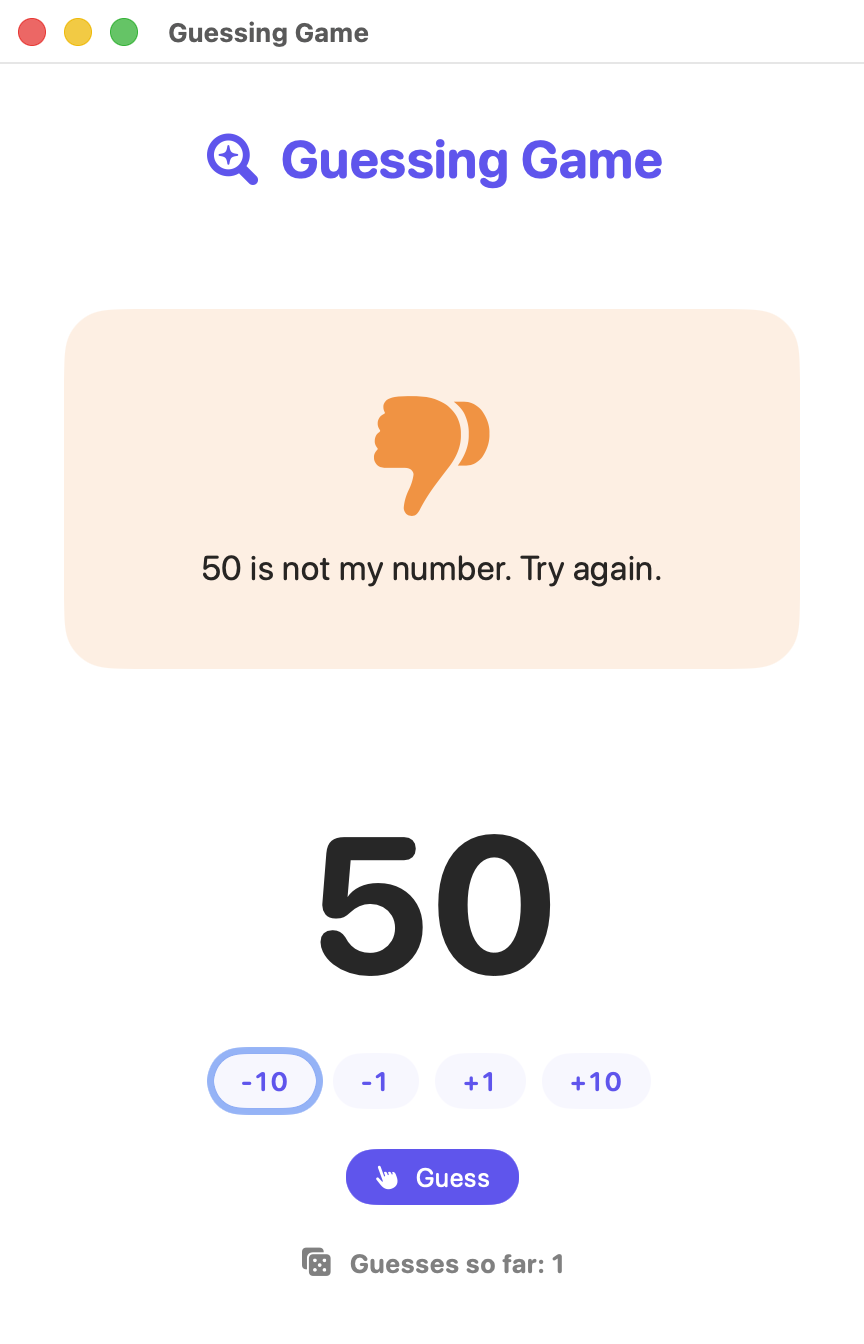
2. Add a symbol
Find this line near the bottom of the screen code:
Text("Guesses so far: \(guessCount)")
    .font(.headline)
    .foregroundStyle(Color.secondary)
Put the text inside an HStack with a new Image in front of it. An HStack lays out its views side by side, left to right. Move the two lines that start with a dot to the end of the HStack, so they style both the symbol and the text:
HStack {
    Image(systemName: "dice.fill")
    Text("Guesses so far: \(guessCount)")
}
.font(.headline)
.foregroundStyle(Color.secondary)
Use any symbol you like in place of dice.fill. Run the game again:
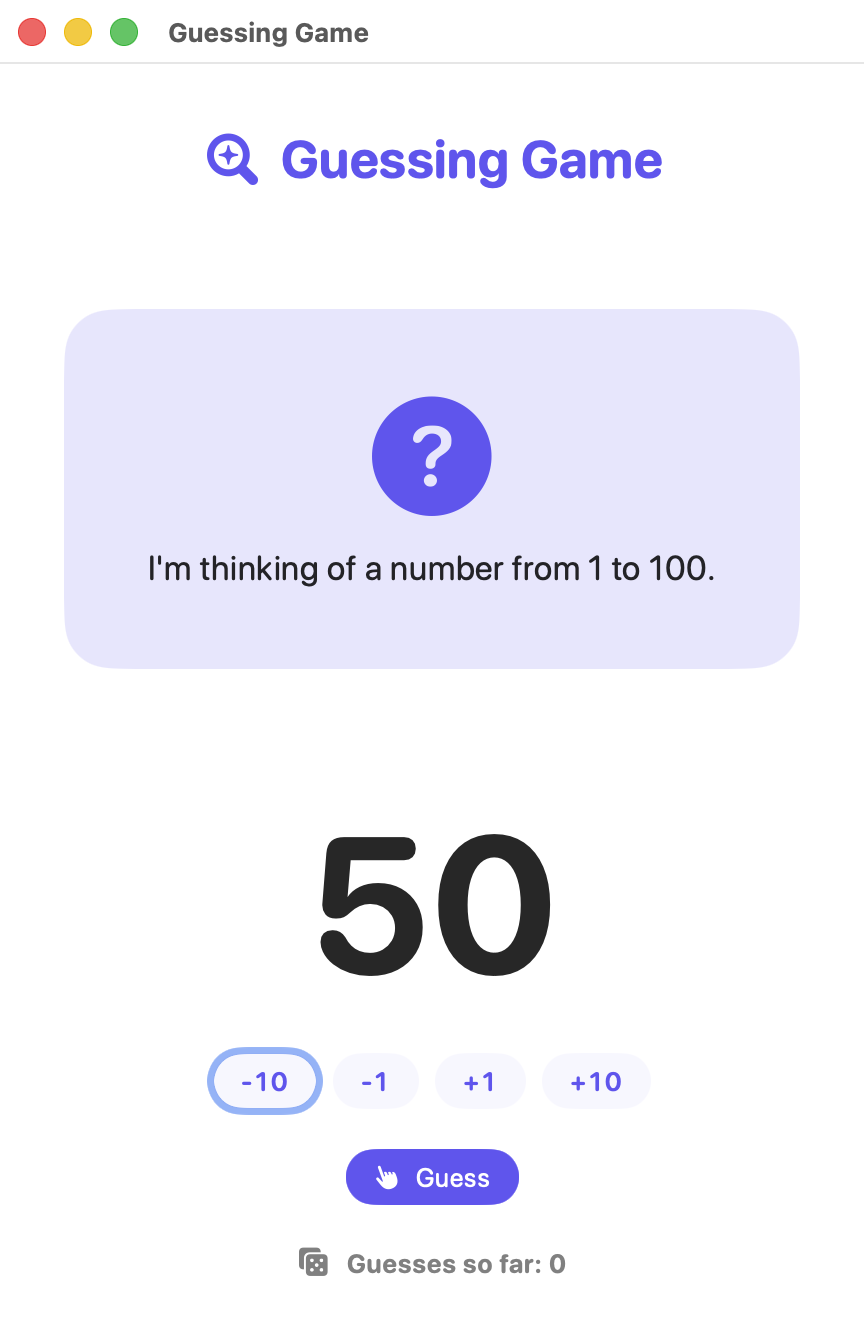
If the lines look ragged, choose Editor > Structure > Re-Indent.
Go further
Change the symbol in the title, or the one on the Guess button. Then Commit and Push so your new symbols are saved.
Test of success
- A wrong guess shows a symbol you chose, not the X.
- A symbol sits beside “Guesses so far”.
- You can open the SF Symbols app, find a symbol, and copy its name.
Curriculum connection
C3.2
work independently, using support documentation (e.g., IDE Help, tutorials, websites, user manuals), to design and write functioning computer programs;
Link to original
B2.5
design user-friendly software interfaces (e.g., prompts, messages, screens, forms).
Link to original